Time Series Charts: From Default to Intentional

Time series data sits at the heart of most business presentations. Whether the data is annual, quarterly, monthly, or daily, business development and marketing professionals are routinely asked to turn it into visualizations that not only inform, but provide direction to management.

Working with time series data is harder than it looks. Even before you reach the chart, the data itself can fight you—years, months, and quarters often live in separate columns and need to be assembled into a proper date. And once you have correctly formatted dates, a new question appears: how much of each date does the reader actually need to see?

Consider the following chart, which shows monthly data over a six-and-a-half year period.
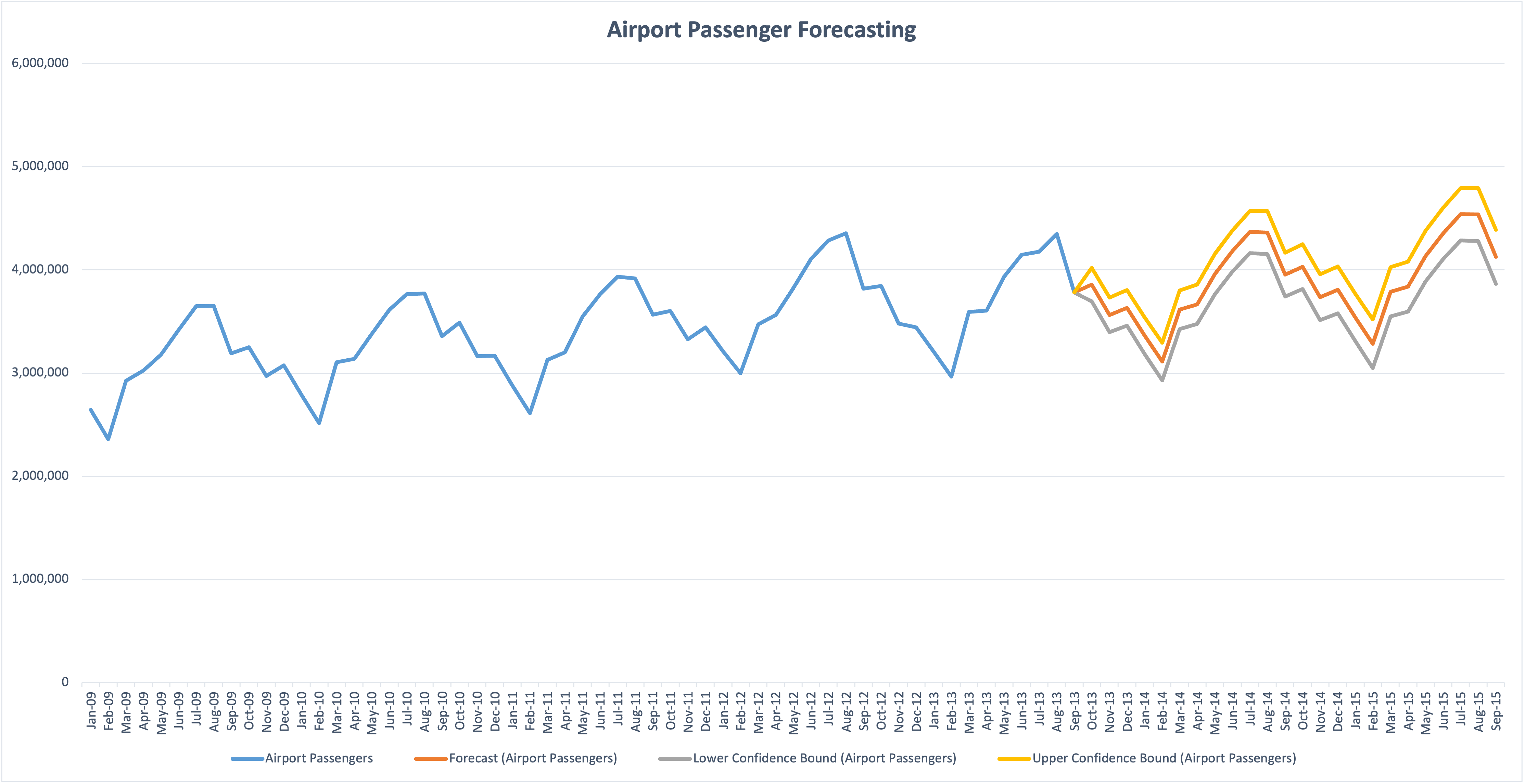
Line chart of monthly airport passenger counts from January 2009 to September 2015, showing seasonal peaks and troughs. The x-axis displays every single month label (Jan-09, Feb-09, Mar-09, and so on), creating dense, rotated text that runs the full width of the chart. A legend at the bottom lists four series: Airport Passengers, Forecast, Lower Confidence Bound, and Upper Confidence Bound.

(Data from https://support.microsoft.com/en-us/office/create-a-forecast-in-excel-for-windows-22c500da-6da7-45e5-bfdc-60a7062329fd)

The instinct to show every date because it exists in the data produces two consequences that hurt comprehension: rotated labels that are hard to read, and a cluttered x-axis that slows the eye as it tries to track values over time. The result is visual noise that obscures the story the chart should be telling. People tend to dump their data into charts without thinking visually first.

Excel’s default labeling patterns reinforce the problem—they look rigid, and most users don’t realize they can intelligently control which dates appear or use strategic spacing to produce a cleaner visualization.

A few principles for time series charts

Before walking through the alternatives, here are the guidelines I want each chart to satisfy:

  • The x-axis should display only as many dates as the reader needs to anchor the trend.
  • Labels should be horizontal whenever possible.
  • The y-axis range should reveal variation in the data, not enforce a zero baseline by default.
  • The title should do analytical work—telling the reader what to take away, not just what the chart contains.
  • Legends should be minimized; encode information in the title or directly on the chart when possible.

Quick improvements in Excel

With tools like Plotnine and ggplot2 readily available in Python and R, I seldom build visualizations in Excel anymore. But a few formatting changes can meaningfully improve the reader’s experience without leaving the application most business professionals are already using.
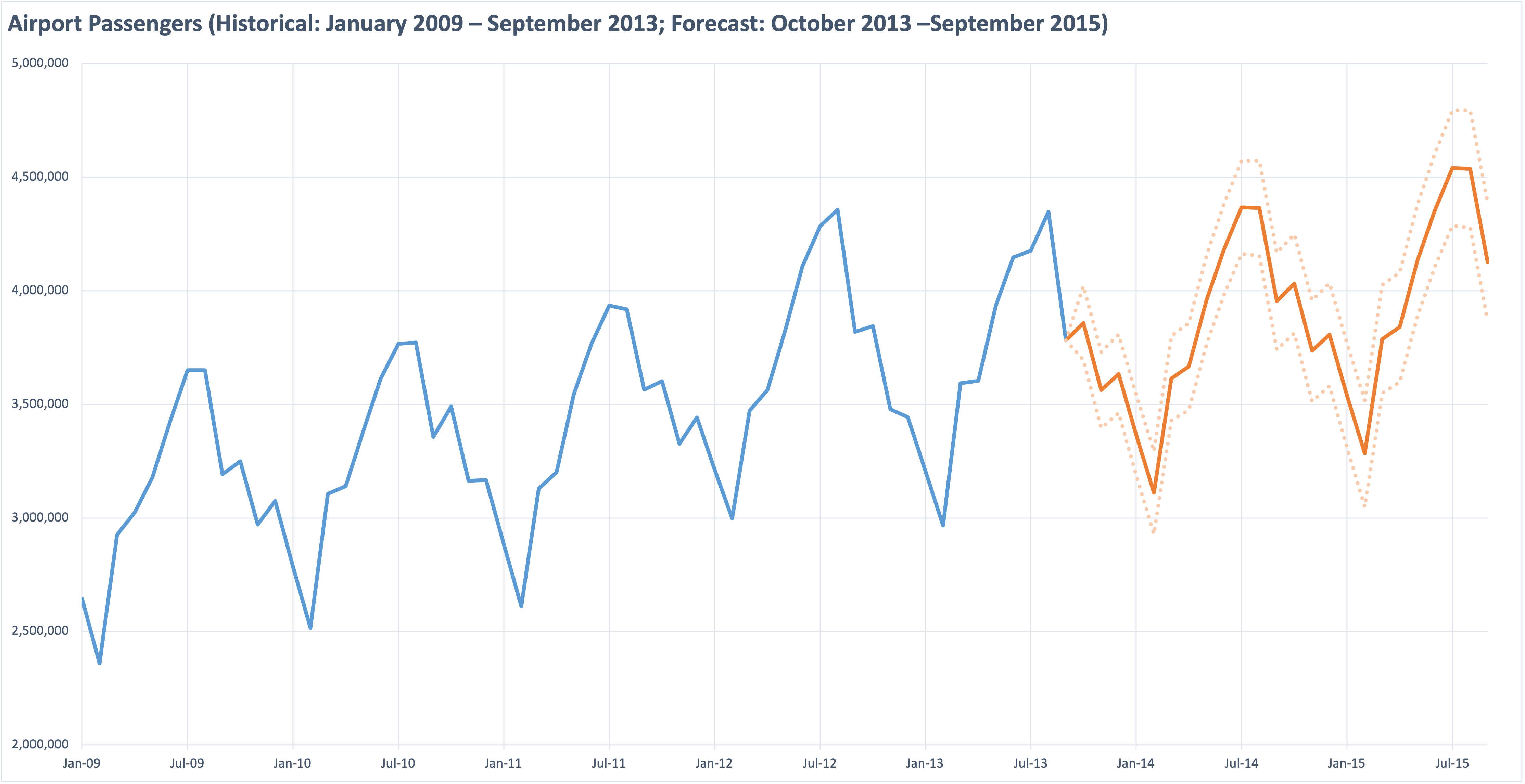
Improved Excel line chart of the same airport passenger data, with a clearer header reading "Airport Passengers (Historical: January 2009 – September 2013; Forecast: October 2013 – September 2015)." The x-axis now displays labels every six months (Jan-09, Jul-09, Jan-10, and so on), making the dates legible. The y-axis range is narrowed to roughly 2 million to 5 million, accentuating the seasonal pattern. The forecast period is shown in orange with transparent dotted confidence bounds on either side.

The changes from the original:

  • X-axis interval set to 6 months. This eliminates the dense text from the previous chart and, as a bonus, naturally captures the seasonality of the data (lows in February, highs in July or August).
  • Vertical gridlines added at those same six-month intervals to guide the eye between key dates.
  • Y-axis range narrowed. Because this is a line chart rather than a bar chart, there is no need to start at zero. Choosing a range that captures the actual data accentuates the seasonal pattern.
  • Title doing double duty as a y-axis label, with enough information that the legend becomes unnecessary.
  • Simpler color palette. Two colors instead of four, with the confidence bounds shown as transparent dashed lines. If the main message were the uncertainty of the forecast, those elements would be emphasized; here, the message is the modest growth of the forecasted values.

A Grammar of Graphics alternative

This example was developed using ggplot2 and the fpp3 R package bundle, but it could just as easily have been built in Python using Plotnine and either statsmodels or statsforecast for the modeling.
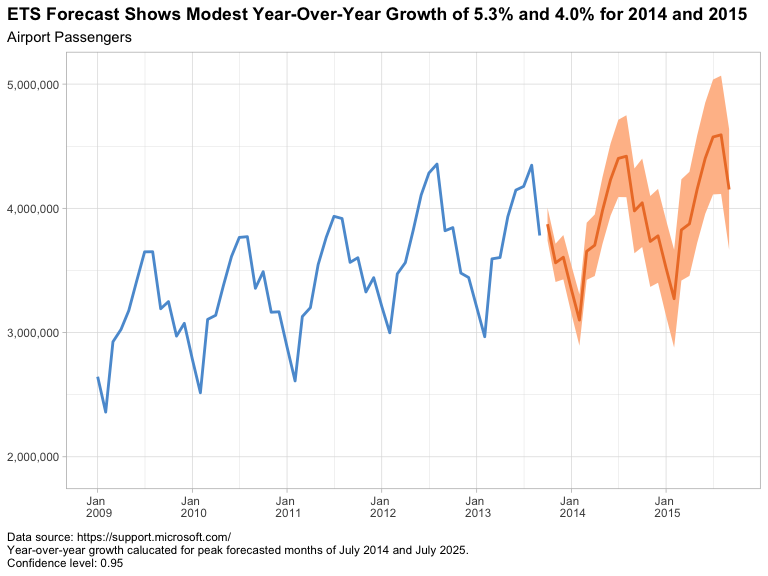
ggplot2 version of the same airport passenger chart, with a title in bold reading "ETS Forecast Shows Modest Year-Over-Year Growth of 5.3% and 4.0% for 2014 and 2015" and a subtitle reading "Airport Passengers." The x-axis displays annual labels (Jan 2009 through Jan 2015) with horizontal text. The historical data is shown as a blue line; the forecast period is shown as an orange line with a translucent orange band representing the 95% confidence interval. Source attribution and confidence level are noted in small text at the bottom left.

In this version I kept several of the default values—the annual x-axis labels, the default font sizes, and the shaded confidence intervals. If I were preparing this for a live presentation, I would adjust the fonts to ensure legibility for the audience.

The first task is making sure dates are handled as a proper time series. When reading the Excel file, the date column is correctly identified as the POSIXct datetime class; however, for time series analysis we want a structure where the intervals are guaranteed to be equal. In R, that means converting the data frame to a tsibble using the yearmonth() function. (Python’s pandas library took a different approach. Wes McKinney designed it from the start around labeled-axis data structures with integrated time series functionality, which is part of why it became the default tool for this kind of work.)

For both ggplot2 and Plotnine, we have complete control over major and minor breaks and gridlines on each axis. That control lets us choose a natural six-month or annual interval along the x-axis that guides the eye along the seasonal trend without introducing clutter.

In grammar of graphics tools, the title is built into the syntax rather than added as an afterthought. That makes it natural to write a title that conveys the message I want the audience to remember: modest year-over-year growth of 5.3% and 4.0% for 2014 and 2015, measured at the July peaks. The chart’s job is to support that claim; the title states it directly.

One additional technique worth exploring on charts like this is the use of alternating shaded bands—quarterly, yearly, or monthly depending on the data—to provide visual anchors and rhythm without adding more gridlines or labels. I didn’t apply it here, but for longer time series it can give the eye natural resting points that further reduce cognitive load.

My Conclusion

Time series charts go wrong when defaults take over: every date displayed, rotated labels, a y-axis pinned to zero, a title that names the chart instead of explaining it, and a legend doing work the chart could do on its own. None of these defaults are wrong in isolation, but together they produce the cluttered output we started with.

Whether the work is done in Excel, ggplot2, or Plotnine, the principles are the same—show fewer dates, narrow the y-axis when it helps, let the title carry the message, and minimize the legend. Excel can deliver a meaningful improvement with a few minutes of formatting. A grammar of graphics tool delivers the same improvements as a repeatable framework, which is the bigger win when the same chart needs to be produced again next quarter.


If you found this useful, you might also be interested in my earlier post on alternatives to dual y-axis charts, which works through a related set of design choices. I’m also posting related walkthroughs to my YouTube channel (@rayjameshoobler), and if you’re new to Python on Windows, my beginner’s guide Getting Started with Python on Windows 11 is available on Amazon.
Fixing a Dual Y-axis Chart from a Real Industry Report: Two Alternatives

The “Dual Y-Axis” Chart

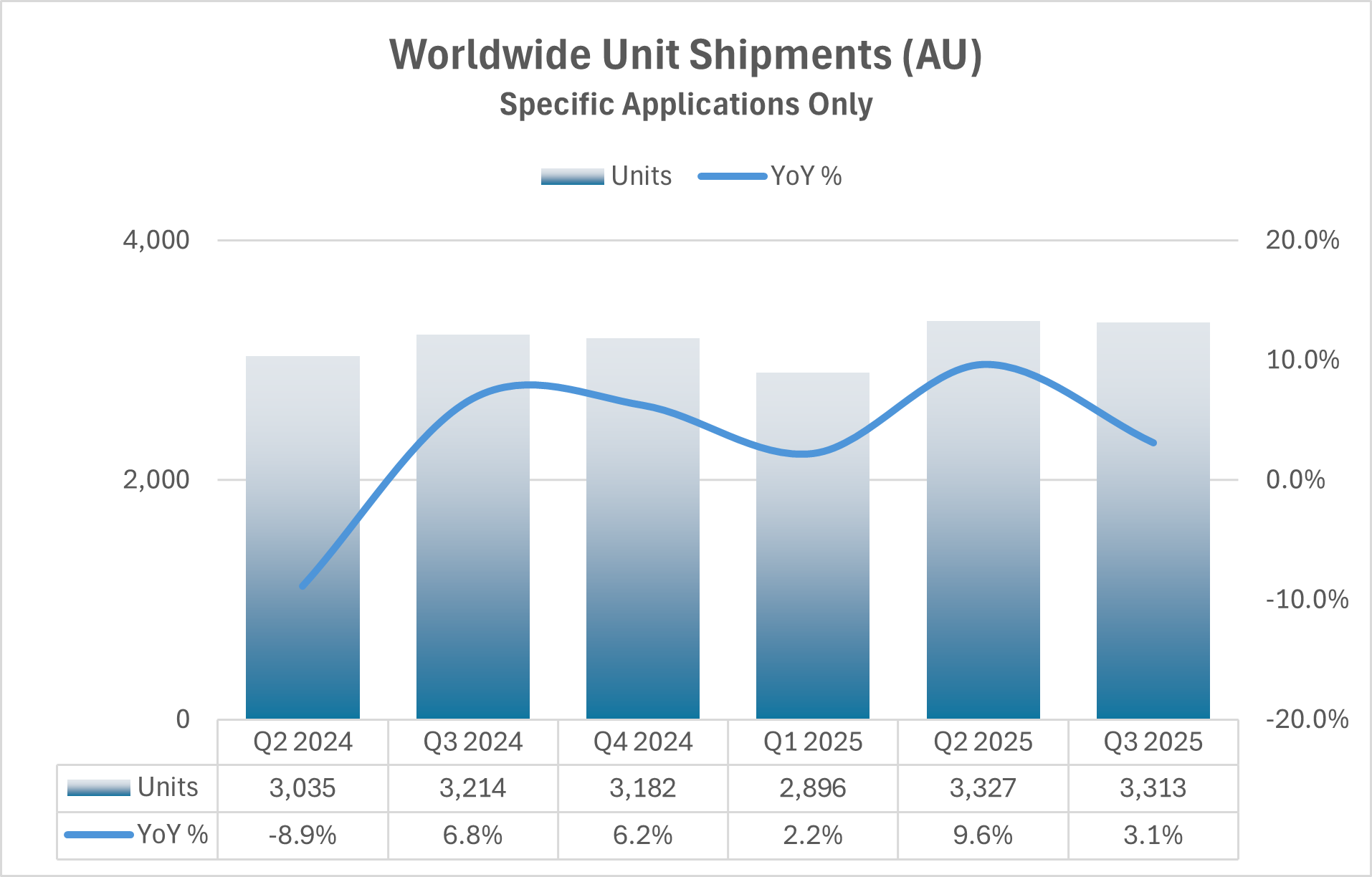
Dual Y-axis charts are common in business reporting, and most of them do more harm than good. As Exhibit A, I present…

)

I’ve anonymized this chart to not offend the organization who published it, but this chart is based on a real industry report. Unfortunately, it’s not an uncommon choice and arises when anyone is challenged with presenting two pieces of (supposedly) related data on a single chart or slide. I have several issues with the chart:

  • The bar chart is correctly scaled to a lower value of zero but the large values make it difficult to see year to year changes which only occur within the upper 15% of the range.
  • The trend line has been “smoothed”. This obscures the data and implies movement between quarters that doesn’t exist.
  • The quarterly results are from Q2 of one year to Q3 of the next—six quarters. This seems like an odd choice and I would argue starting at Q1 and continuing through the latest quarter (or quarter of interest).
  • The year-over-year percent change implies past values are important, but the reader needs to back-out the prior year values if they want to make a direct comparison to the prior year. If we’re looking at changes over the past, in this case, three years, let’s show that data for each year.

To address these issues, I want to apply the following ideas to make the charts more accessible to the reader: don’t use two y-axes (make this a rule, not a guideline), trends should be captured with a line chart, the time frame of interest should be clearly stated in the title or subtitle (preferably the subtitle), the x-axis dates should be legible (the chart above does this well, but it’s often a challenge with time-series data), and finally, any chart created should stand on its own without needing a table—if a table is needed for reference, it should be a standalone item.

Can this data be presented on a single panel without two y-axes? Here are two ways.

Alternative A

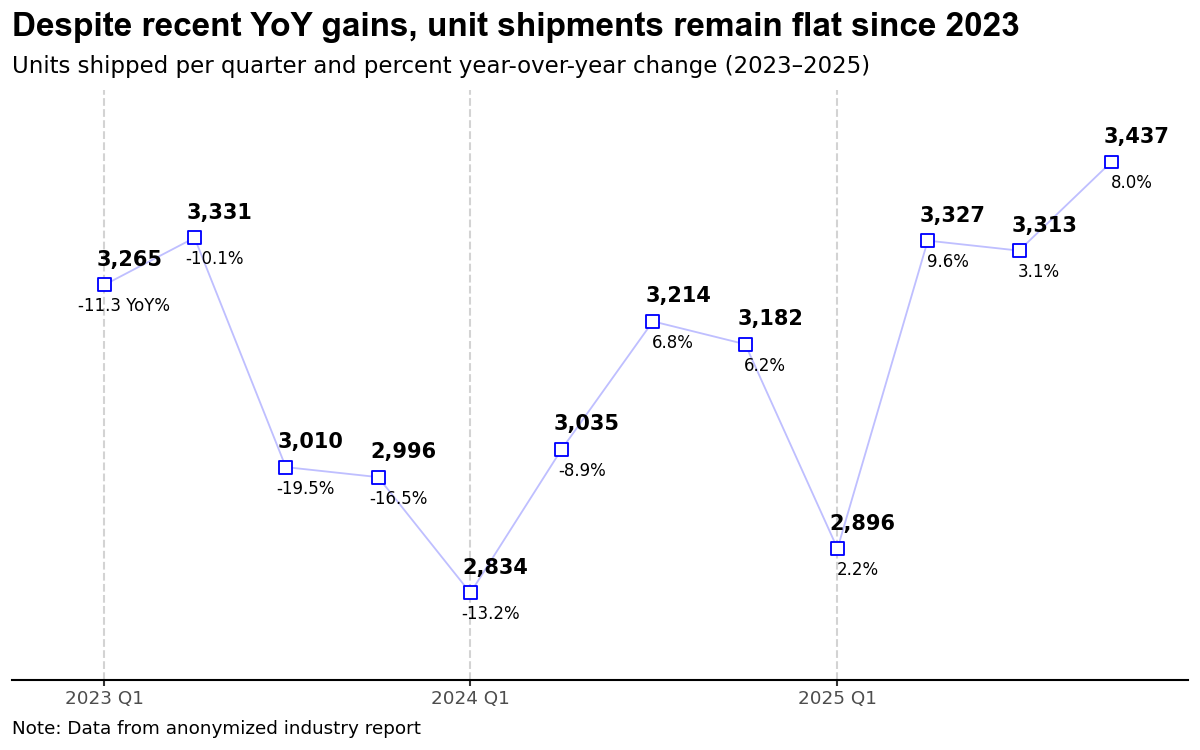
First, I decided that the period of interest is from 2023 to 2025 with the main message being captured in the title and the period clearly defined in the chart subtitle. Most importantly, I’ve changed the bar chart to a line chart as I want to focus on trends in the data; this immediately frees me to narrow the y-axis scale making the year-to-year variations visible. For this chart, I decided that I want the reader to have access to all the data, so each point is labeled with both the number of units (shipped) and the year-over-year percent change positioned above and below each marker, respectively. This chart pushes the upper limit of values placed on a chart—I see 10 to 12 labeled points being an upper limit. There’s a real argument that I’ve just moved the data table into the chart rather than eliminating it, but I’d rather have annotations the reader can immediately follow than a separate table they have to cross-reference. Units use a bold font to ensure a dominant position. Overall, I would argue this chart captures elements from the original while reducing the cognitive load required by the reader.

One thing I’d consider changing is my display of each period (quarters). While the major grid lines are sufficient for the calendar year, the minor grid lines are subtle and may not provide sufficient differentiation for some viewers. Adding a light shading to the panel with white grid lines would be an option worth exploring.

Alternative B

Since the dual y-axis chart is really two charts, it makes sense to create two charts. The question is then, how do I place these charts on the page to help the reader digest the content quickly. Not only do we have the obvious options of side-by-side versus stacked, but we also have to consider the relative size of each chart and how that conveys the message we want to deliver.

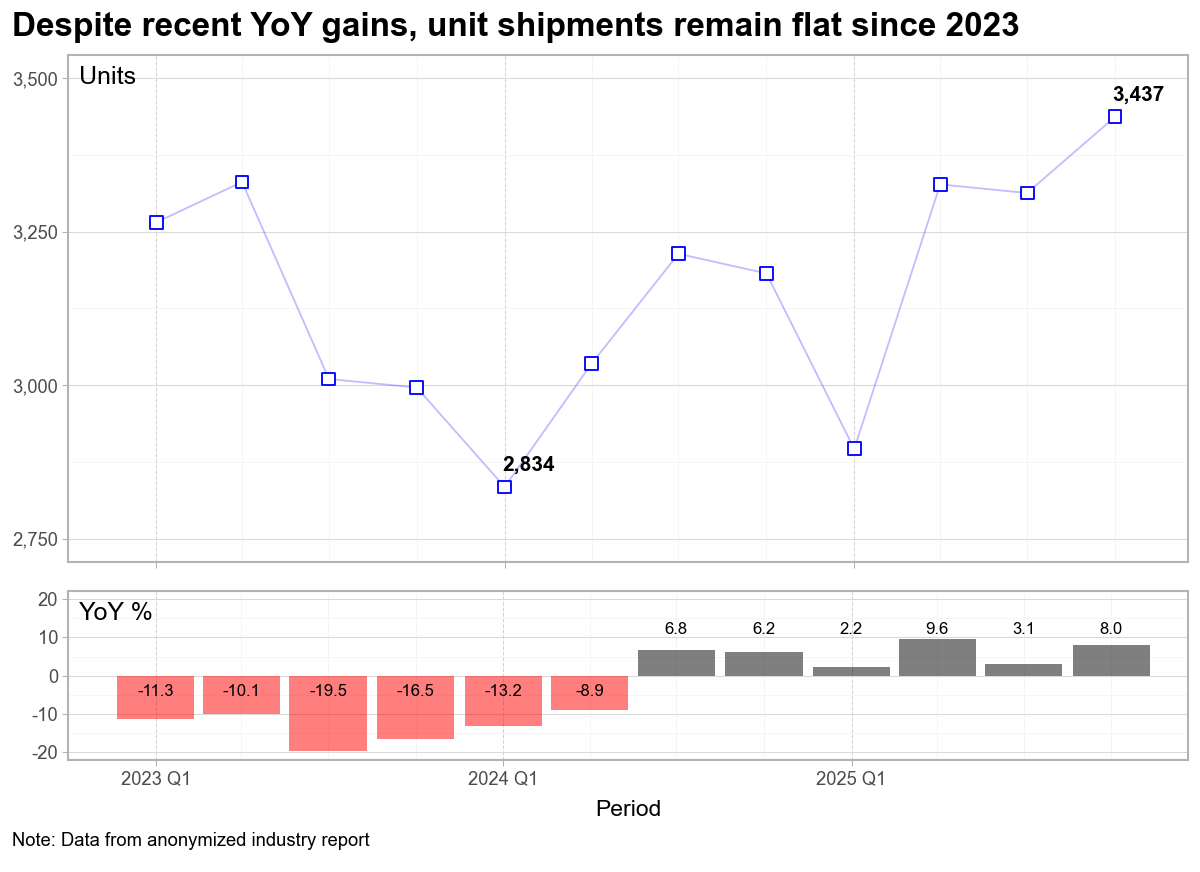
In the second example above, I’ve kept my basic line chart, but decided to only include the minimum and latest value in the chart. Because of this choice, I’ve reintroduced the y-axis which allows the reader to approximate the other values as needed. I could have used a second line chart for the year-over-year percent changes; however, the bar chart clearly differentiates the two sets of data. The ability to color negative values as red is a further visual cue that the period from 2023 to early 2024 was difficult, but that since Q3 2024, the trend has been positive.

I also made a choice to move the y-axis titles to a horizontal position at the top of the panel of each chart. No need for the reader to tilt their head as they scan down the page. I’m aware of at least one plot tool that implements this style as the default placement.

That said, the size of each panel is used to convey importance, with the top chart (Units) dominating the bottom chart (YoY%).

Again, to aid the reader, I’d like to find a way to incorporate quarterly labels to the chart; however, my fear is that additional labels would add visual clutter. The quarterly bars do an adequate job providing this differentiation. If my plan is to use this chart in a presentation, I’d take time to ensure the fonts are appropriate—they may need to be increased.

My Conclusion

The visual clutter and cognitive load associated with dual y-axis charts can be avoided by using annotations on a single chart, or by creating two separate charts. This can be a time-consuming task in Excel; however, modern data analytic packages in python (Plotnine) or R (ggplot2) enable a repeatable framework that can streamline the process.

There are some great books available to help you create impactful charts and presentations. Three resources I continually reference are: Storytelling with Data by Cole Nussbaumer Knaflic which provides a solid framework to build effective data visualizations; Strategic Storytelling by Dave McKinsey, an overlooked gem demonstrating how top consulting firms incorporate visualizations into effective presentations; and Slide:ology by Nancy Duarte, which pushes the reader to think like a designer. While each has their own terminology, the goal is always the same, create visualizations (presentations) that inform the reader or audience.